← back to clippal ✦ Quick start
Six gestures and you’ve got it
clippal is mostly one panel and a handful of keys. Learn these six and you’ll have covered
almost everything you’ll do in a day — the rest is written along the bottom of the panel,
where you’ll find it when you need it.
✦ Common flows
double-tap Option
Open it
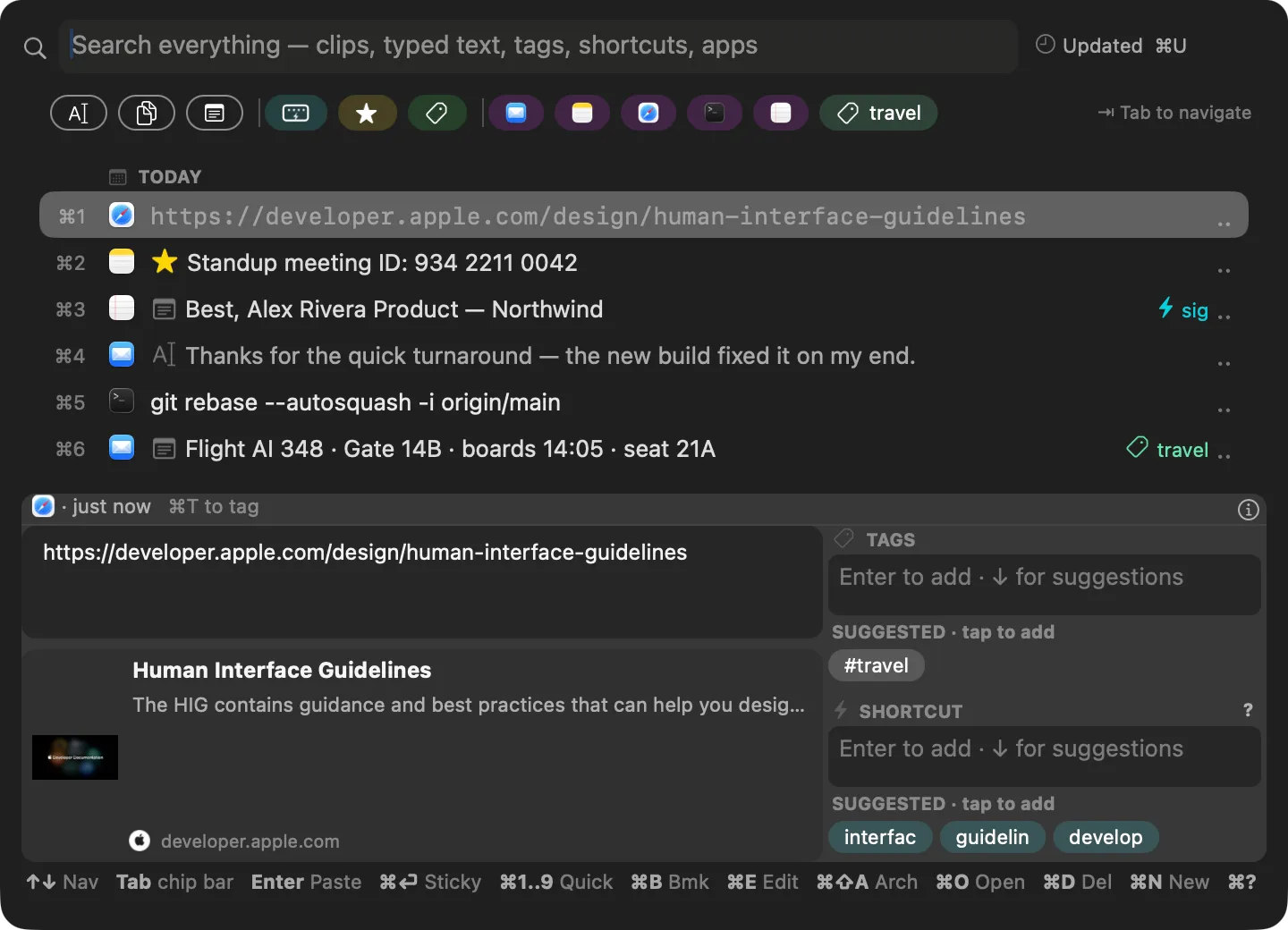
Tap Option twice, quickly, from any app. The panel comes up over whatever you were doing with your whole history in it — start typing to narrow, ↑↓ to walk the list, ⏎ to paste back into the app you came from. Esc closes it. Nothing else needs to be running, and holding Option still works as a normal modifier.
- ✦ If text was selected when you opened it, that text is already in the search box.
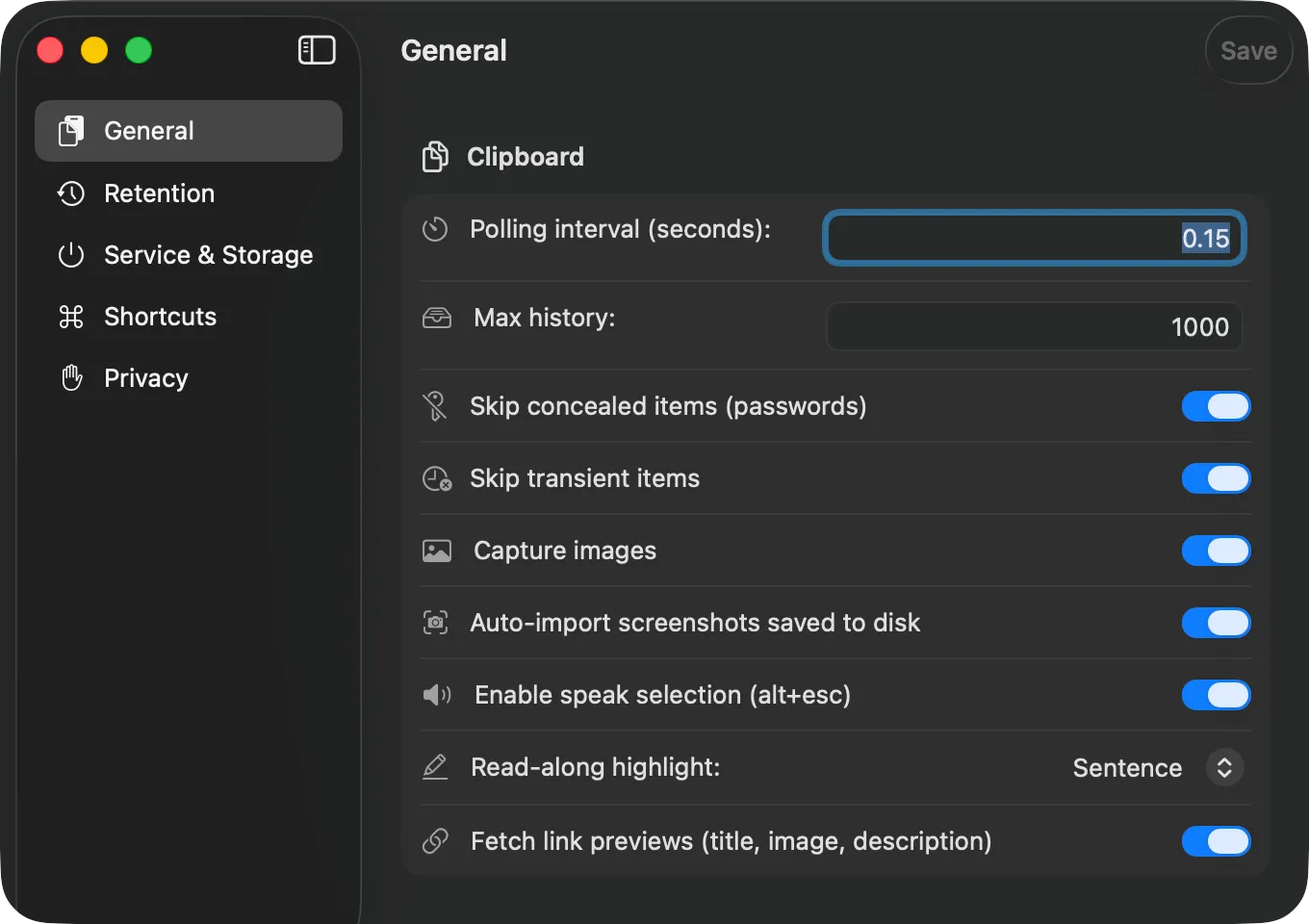
- ✦ Prefer a combo? Set one under Settings → Shortcuts and keep both.
More on this →
Write a new clip
You don't have to copy something for it to live here. ⌘N opens an empty clip in the preview pane — type a note, a signature, a snippet of boilerplate. Tab moves you Content → Tags → Shortcut, and ⌘S saves. While you're editing, the bottom bar turns into the buttons that matter: Save, Save as new, Discard.
- ✦ The bottom bar is the cheat sheet — it changes with what you're doing (see below).
- ✦ ⌘E does the same thing to a clip that already exists.
More on this →
type a tag, Enter adds it
Tag it, then filter by the tag
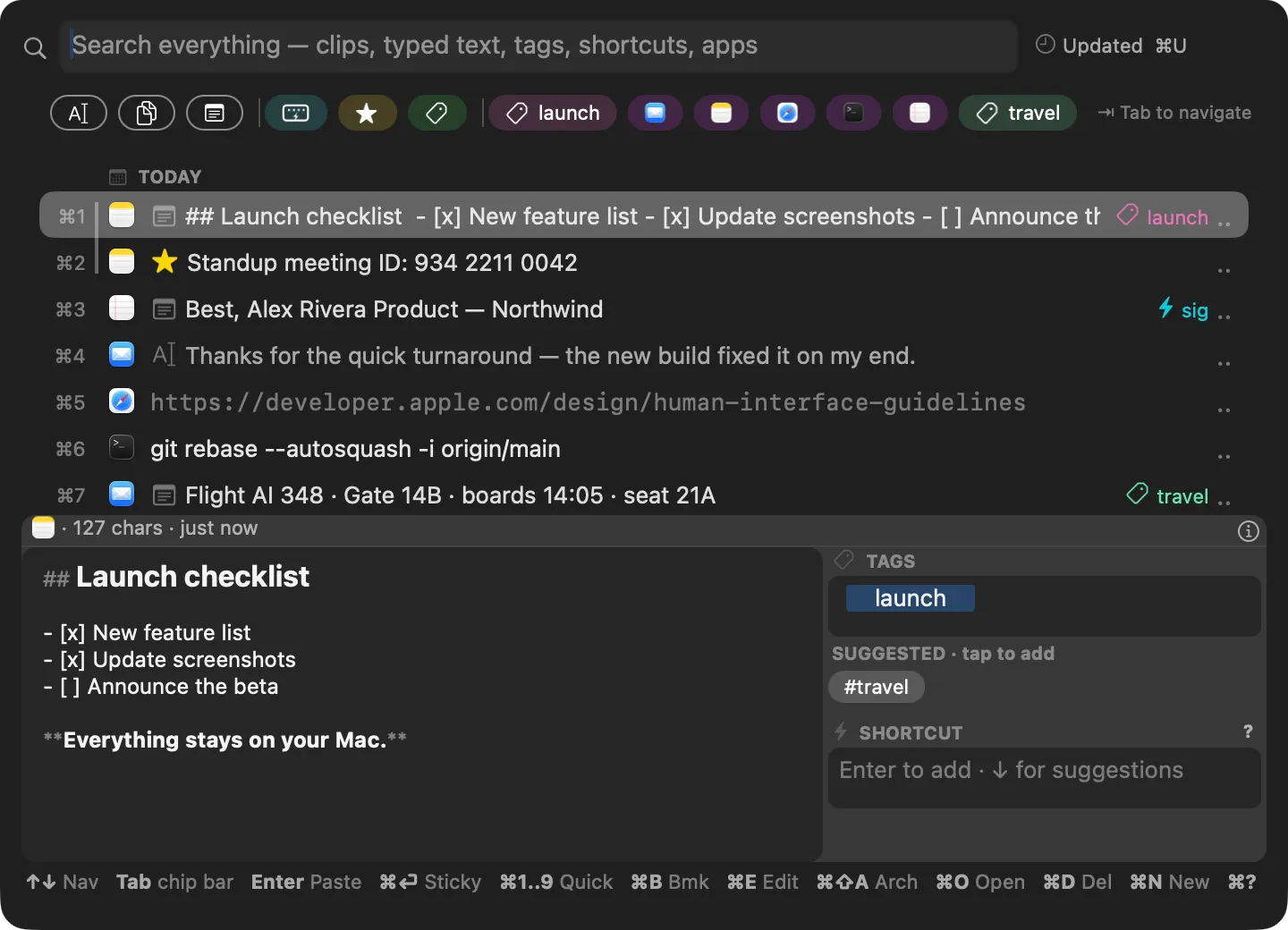
Give a clip tags as you create it, or Tab to the Tags field of any clip and add them. Every tag you use becomes a chip in the strip along the top of the panel: click one — or press ⌥1…⌥9 for the Nth chip — and the list narrows to that tag. Chips stack, so two tags means clips carrying both.
- ✦ A dropdown suggests tags you already use as you type; ↓ on an empty field lists your most-used.
- ✦ ⌫ drops the last filter you added; Esc clears them all.
More on this →
type it in any app
Set a shortcut, type it anywhere
Give a clip a keyword — ;sig, ;addr, whatever you'll remember — and from then on, typing that keyword in any app brings the clip to you. A small picker appears right where you're typing, showing the clip (or clips) behind that keyword; ⏎ inserts the one you pick, Esc leaves what you typed alone. Your clipboard is untouched, so ⌘V still pastes what you last copied.
- ✦ Set it in the Shortcut field of the clip editor — the SUGGESTED pills below the field are click-to-add.
- ✦ Several clips can share one keyword. That's the point of the picker.
More on this →
Bookmark the ones you keep coming back to
⌘B stars the selected clip. Bookmarked clips get their own group at the top of the menu bar menu, so they're reachable without opening the panel at all, and the Bookmarked chip filters the list down to them. A bookmark is also a promise: bookmarked clips are never cleaned up, however old they get.
- ✦ Same for anything you tagged, gave a shortcut, or wrote in clippal — those are yours to keep.
More on this →
grab a row, drop it anywhere
Drag a clip straight into another app
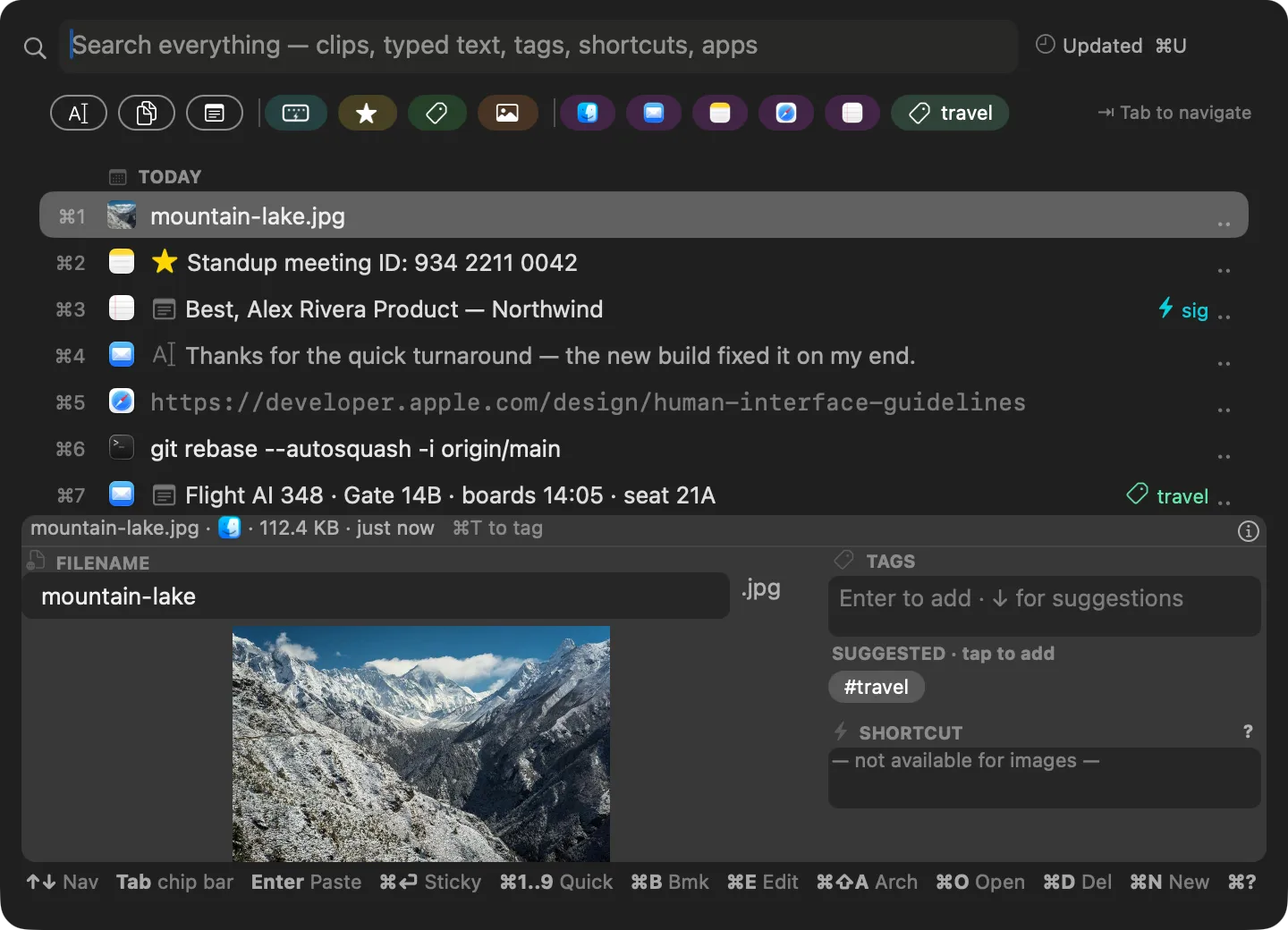
Sometimes pasting isn't what you want. Drag a row out of the panel and drop it where you're headed — a chat box, a document, Finder. Text lands as text; an image lands as an actual file, not a path; a link dropped on a browser's tab bar opens the page. The panel steps aside while you drag and closes once the clip lands, just like a paste. Change your mind mid-air and Esc puts everything back.
- ✦ ⌘-click or ⇧-click a few clips first and they travel as one drag.
More on this →
✦ Also worth knowing
⌥Esc Read it aloud
Select text in any app and press ⌥Esc — a window follows along, sentence by sentence, while your Mac reads it.
More →
⌥C Copy and keep
Copies your selection, bookmarks it, and opens the panel on it, ready to tag or edit.
More →
⌘? Every key, in the app
The full reference lives inside the panel. Hold ⌘ on its own for a card of just the ⌘ actions.
More →
That’s the working set. When you want the detail — blocking an app, retention, backups,
read-aloud controls, troubleshooting — the
full reference
covers every feature, and you can search it.