clippal
A net under everything you copy and type on your Mac. Nothing to file, nothing to decide — the address, the tracking number, the sentence you cut are a double-tap of ⌥ Option away in any app. Everything stays on your Mac, never on a server.
I email you the build · free during beta
The Mac clipboard holds one thing and forgets the rest. clippal remembers everything you copy — and everything you type — and makes it searchable, reusable, and worth keeping.
What it does
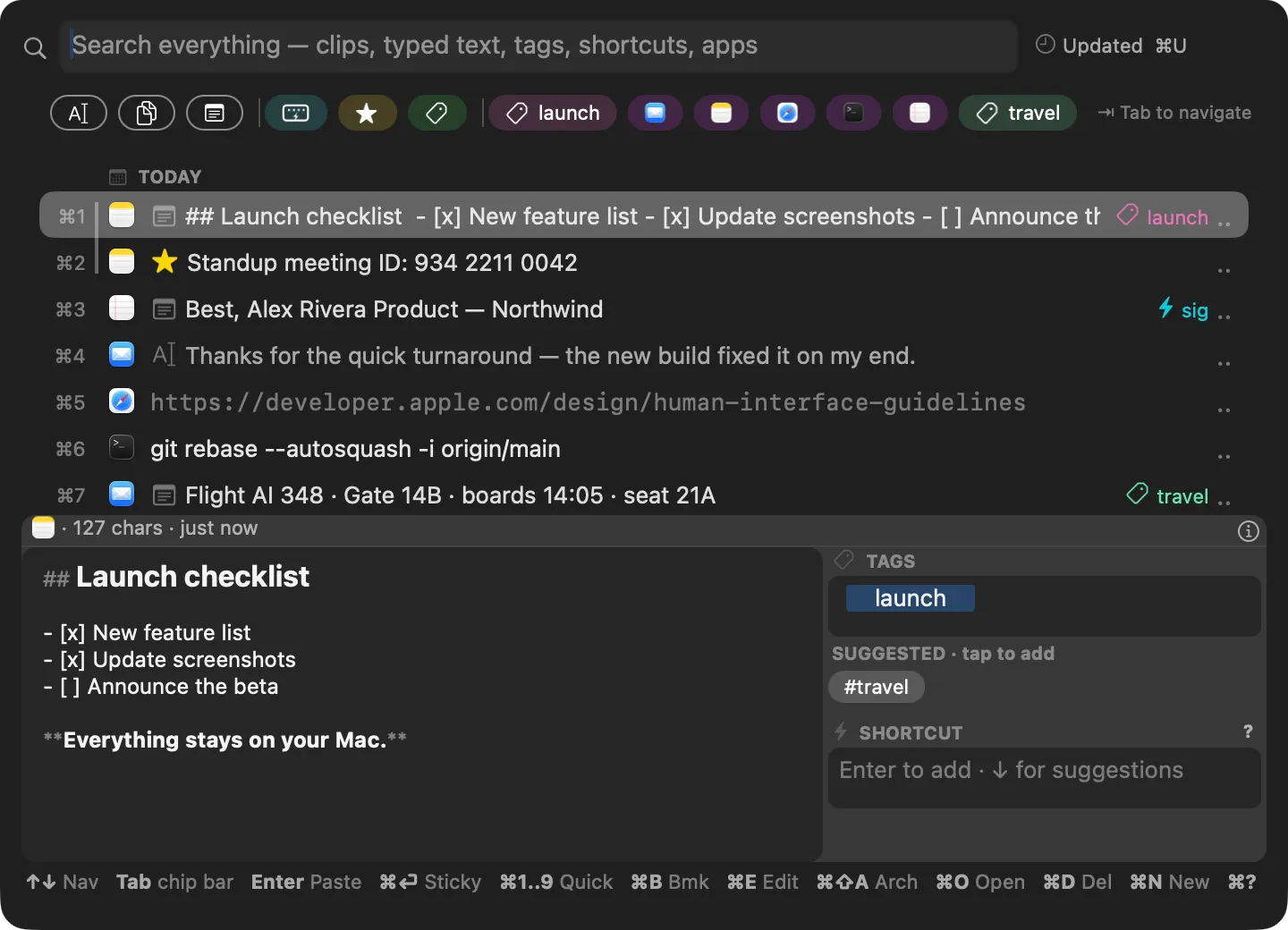
A searchable history of everything you copy
Text, images, screenshots — all of it lands in a fast, full-text history. Double-tap ⌥ Option to open it from any app, then filter by app, tag, or bookmark. Every action is on the keyboard.
Snippet triggers that expand anywhere
Save what you type all the time and drop it in with a short trigger. Several clips can share one: type it and a small picker appears where you’re typing — Tab to choose, Enter to paste.

Have your Mac read it back
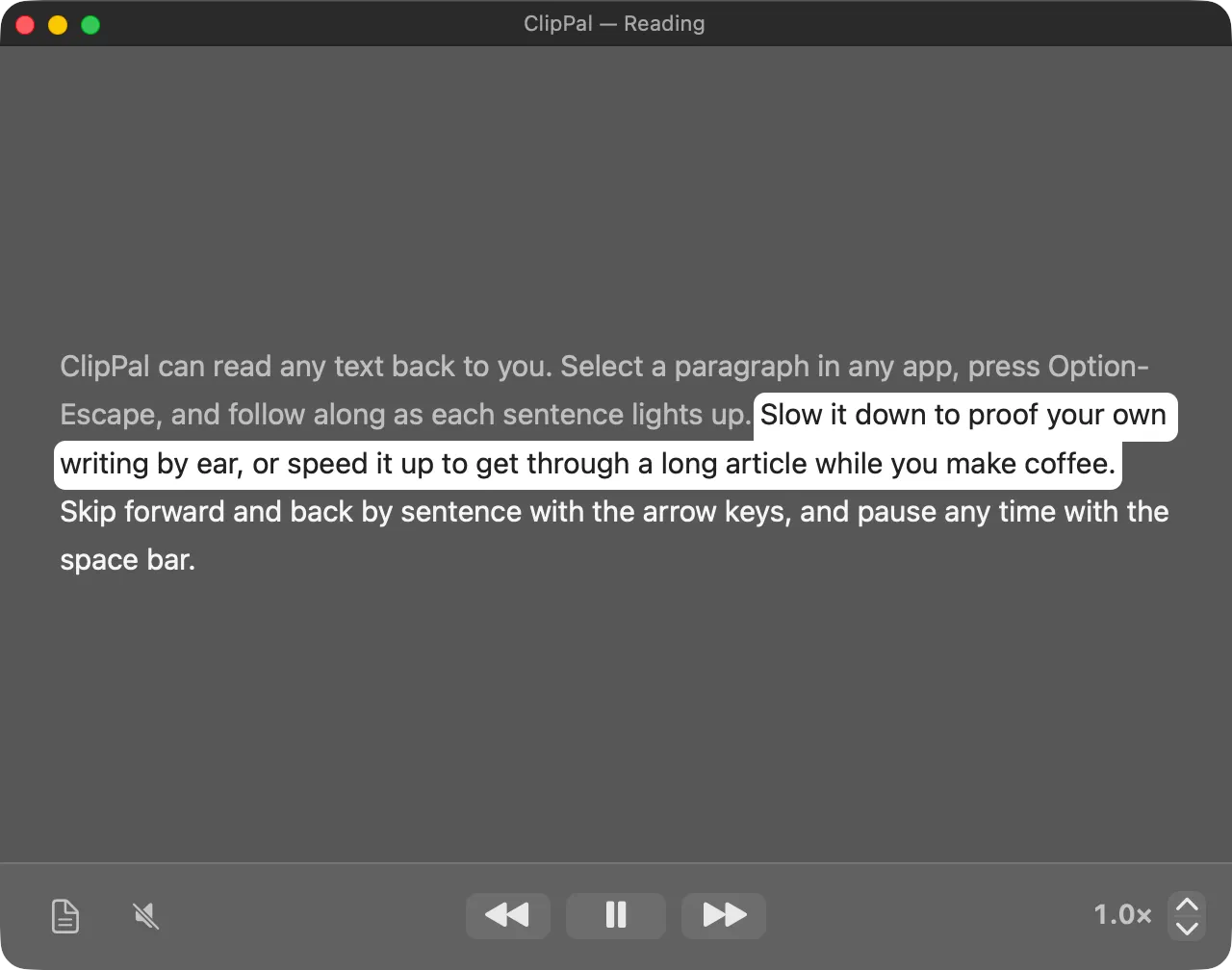
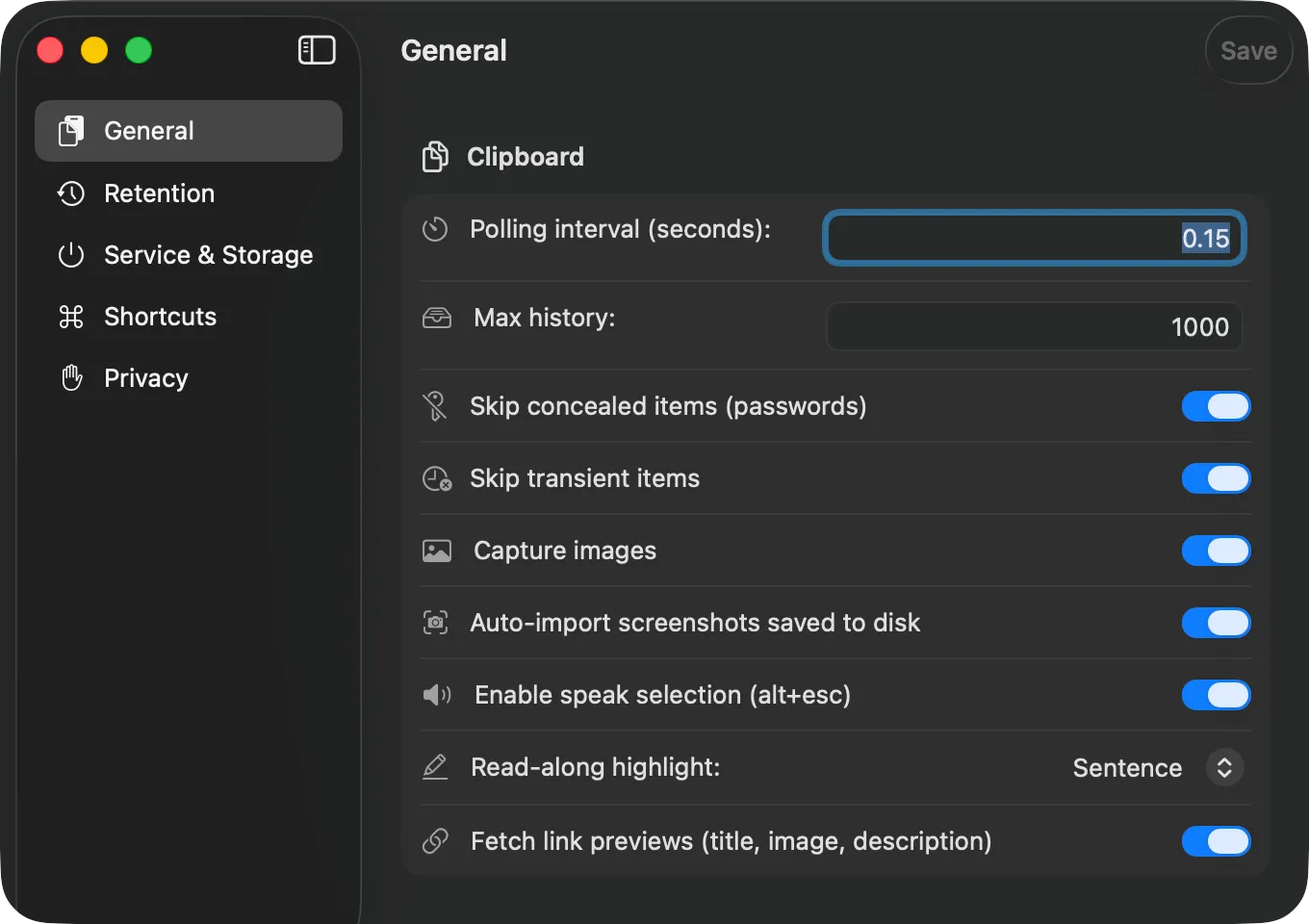
Select text in any app, press ⌥Esc, and hear it out loud, with the current sentence lit up as it speaks. Pause, skip, and change speed as it goes — the fastest way to proof a paragraph.
Copied links unfold themselves
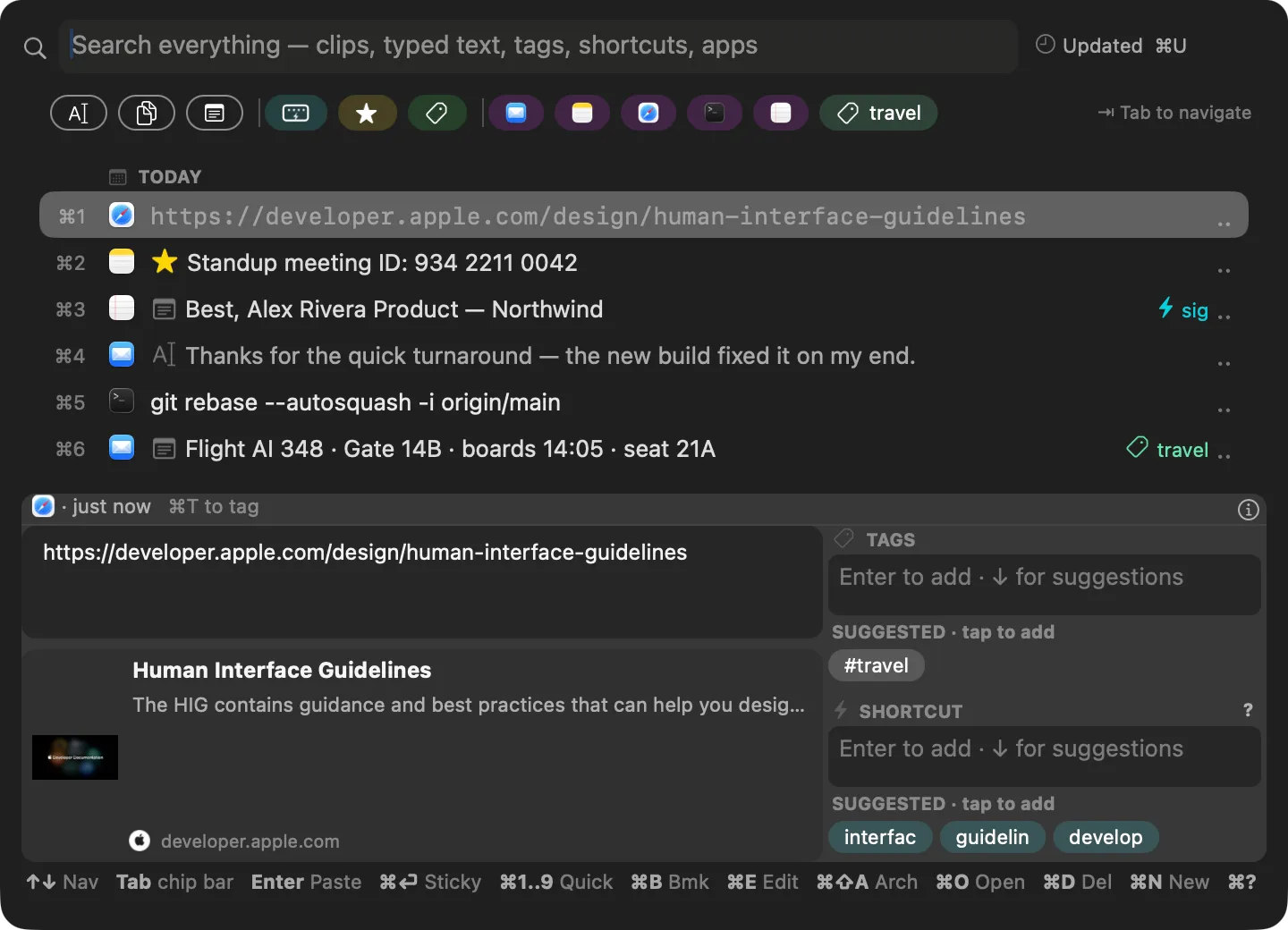
Copy a URL and clippal fetches its title, description, picture, and favicon, so a history full of links is something you can actually tell apart at a glance.
Images and screenshots are clips too
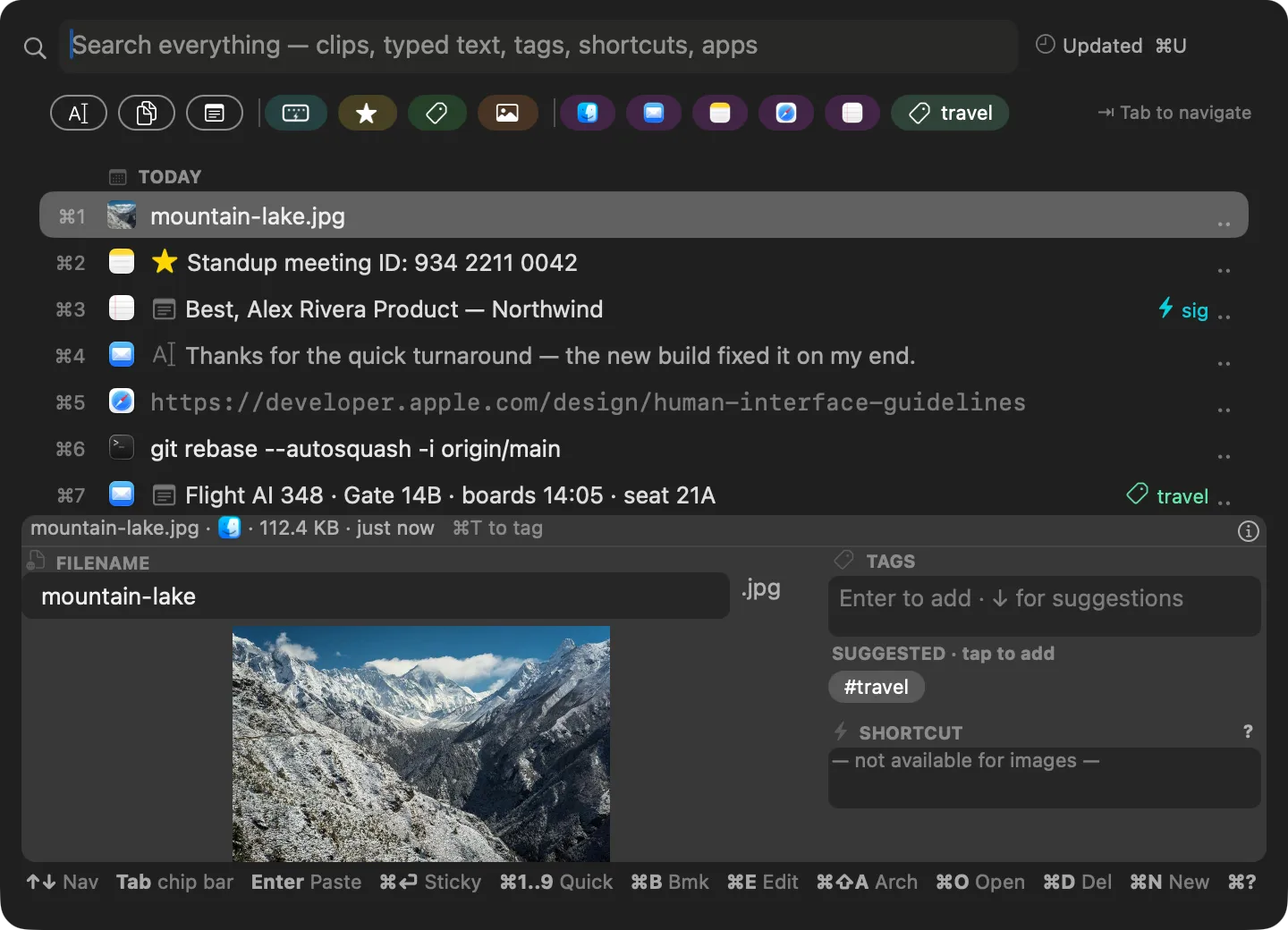
Preview a picture, rename the file, tag it, and drag it straight into another app. No separate shelf to manage, and no quality lost on the way through.
You decide what gets remembered
Block an app or a website entirely, or just stop typing capture there. Password managers are skipped automatically, and built-in filters catch sensitive data. All of it in plain toggles.
Typed-text capture
The draft that vanished when the page reloaded? clippal quietly remembers what you type, so a cleared field never eats your words.
Clip editor & quick notes
Edit any clip in place, tag it, or hit ⌘N for a quick markdown note without opening a “real” notes app.
Peek at your clips
Bind ⌥V and a small floating overlay shows your latest clips on top of whatever you’re doing. Press it again to send it away.
Inline predictions
Ghost-text suggestions as you type, learned from your own clips and never a cloud model. Tab finishes the word.
Paste at full speed
Quick-paste your top clips with ⌘1–9, chain several pastes in a row, or drag a clip straight into another app.
Auto-pruning
Old clips age out on their own, while anything bookmarked, tagged, or given a trigger is kept forever. Undo covers mistakes.
CSV backups you can work with
Backups land as plain CSV. Open one in Google Sheets or Numbers, or hand it to an AI agent to sort and rewrite, then import it back.
Lives in the menu bar
Always a keystroke away, never in your way. Native macOS, light on memory, and it keeps itself up to date.
How it works
- 01
Copy and type as usual
No new habit to learn. clippal captures quietly from the menu bar, honoring every app or site you’ve told it to skip.
- 02
It lands in one history
Text, images, screenshots, typed drafts — links even unfold into previews. All of it stored on your Mac.
- 03
One keystroke brings it back
Double-tap ⌥ to open the panel, search everything, filter by app or tag. Edit a clip, tag it, or give it a ;trigger.
- 04
Paste it anywhere
Hit ⌘1–9, type the trigger, or drag the clip into another app. The loop never leaves the keyboard.
Under your fingers
Paste something you copied an hour ago
Double-tap Option anywhere, type a word or two to narrow it down, walk the list, and Enter pastes it into whatever app you were in. ⌘1–9 skips the walking.
Save a snippet you can type into any app
Open the panel, hit ⌘N for a new clip, write it, then Tab through to tags and a ;trigger and save. From then on, typing ;sig in any app swaps itself for the clip.
Hear a paragraph read back to you
Select text in any app and press ⌥Esc. The read-along window lights the current sentence as it speaks, with pause, skip, and speed on the keyboard.
Glance at your recent clips without leaving
Bind ⌥V and it floats a small overlay of your latest clips over your work. Hold it to cycle back through history, let go and it pastes.
Your clips never leave your Mac.
All on your Mac
The whole history stays on-device. No server, no account, and no sync you didn’t ask for.
Nothing uploaded
Your clipboard holds passwords, private messages, and half-finished work. None of it is mine to see.
Nothing locked in
Your history backs up whole and imports back, in a format you can read. Leaving is as easy as arriving.
Ask for an invite.
Leave your email and I’ll send you the beta build with setup steps — usually within a day. It’s a personal handoff, not an automated download, so ask away and I’ll get you running. I’ll also let you know when 1.0 ships. No newsletter, no spam, never shared.
Questions
Is clippal out?
Why email instead of a download button?
Which Macs does the beta support?
How do updates work once I have it?
Why the name clippal?
Where are my clips stored?
Can I export my clips, and get them back in?
Will it be free?
What will you do with my email?
New to it? The quick start walks the six gestures that cover most days. For a specific feature, the searchable reference covers every one.
Want to try clippal now?
I’ll email you the beta. Free during beta, your address stays private.